Advertisement
Click to download now, finish the installation quickly, and directly unlock the all-round experience
Advertisement
Screenshots


Click to download now, finish the installation quickly, and directly unlock the all-round experience
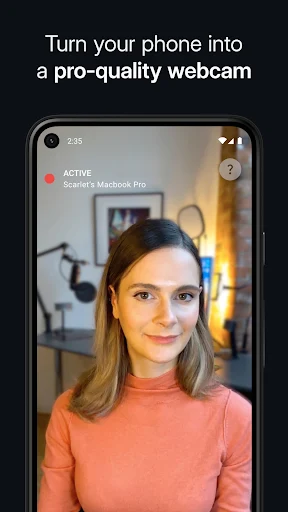
Camo Camera is for people who want to use their phone’s camera for video calls, livestreams or recordings made on a computer. It works with Reincubate’s desktop Camo Studio, which receives the phone’s camera feed and gives you controls and a preview. This is not a stand-alone video-call app: you’ll need a compatible Mac or PC as well as the Android phone.
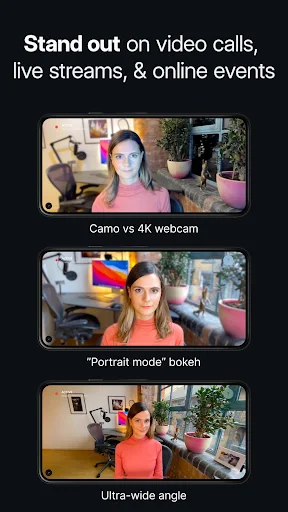
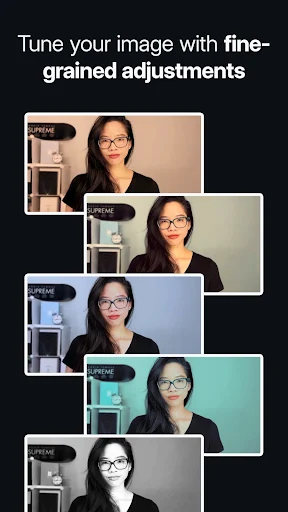
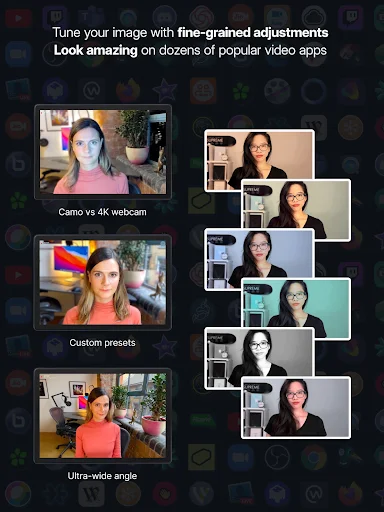
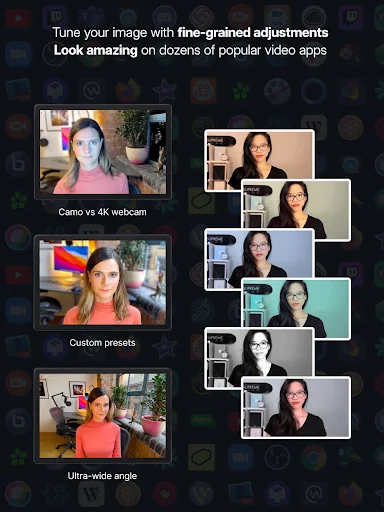
The phone can connect to the computer over USB or Wi-Fi. Camo offers controls for choosing a camera lens and adjusting the image, including focus, exposure, colour and lighting. It also includes portrait and privacy effects. These options may be useful if your computer’s built-in camera gives you little control, or if you want to frame and tune the picture before joining a call.
Because the video is routed to the computer, this setup makes most sense for calls or streams you run there, rather than calls made directly on your phone. Check that your computer and the video software you use work with Camo Studio before relying on it for an event.
Reincubate says Camo routes the video feed from your phone to your computer and does not capture or transmit it. You’ll still need to decide whether a phone-to-computer setup suits your own privacy expectations. Wireless connection avoids a cable, while USB may be preferable if you want a wired setup; either way, the phone and computer need to stay connected during use.
Camo Camera has a 4.19-star average from 6,486 ratings and more than 1,000,000 installs. That shows substantial use, but the score alone can’t tell you whether the desktop requirement fits your setup. It is most relevant if you make calls or recordings on a computer and are willing to use your phone as its camera.